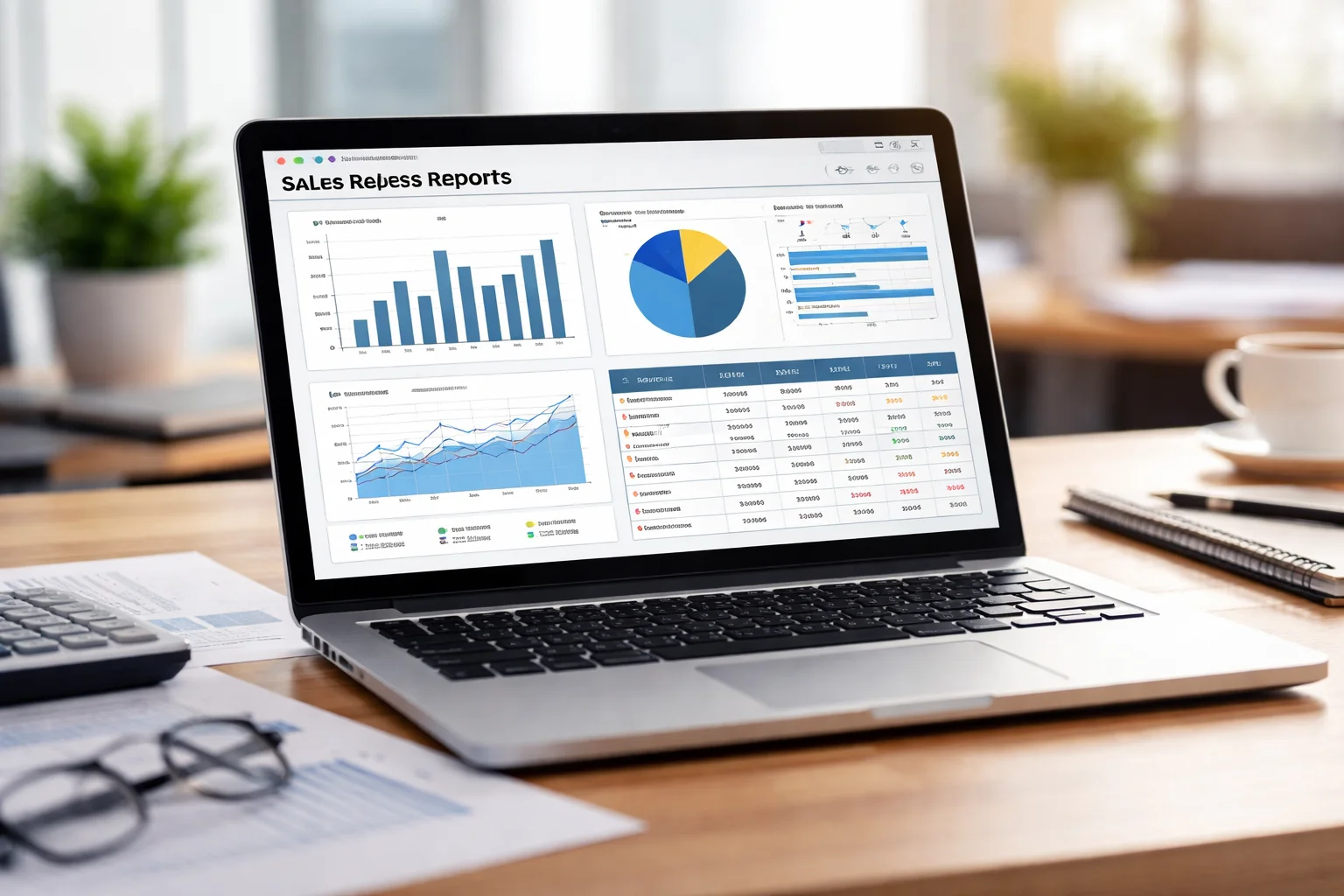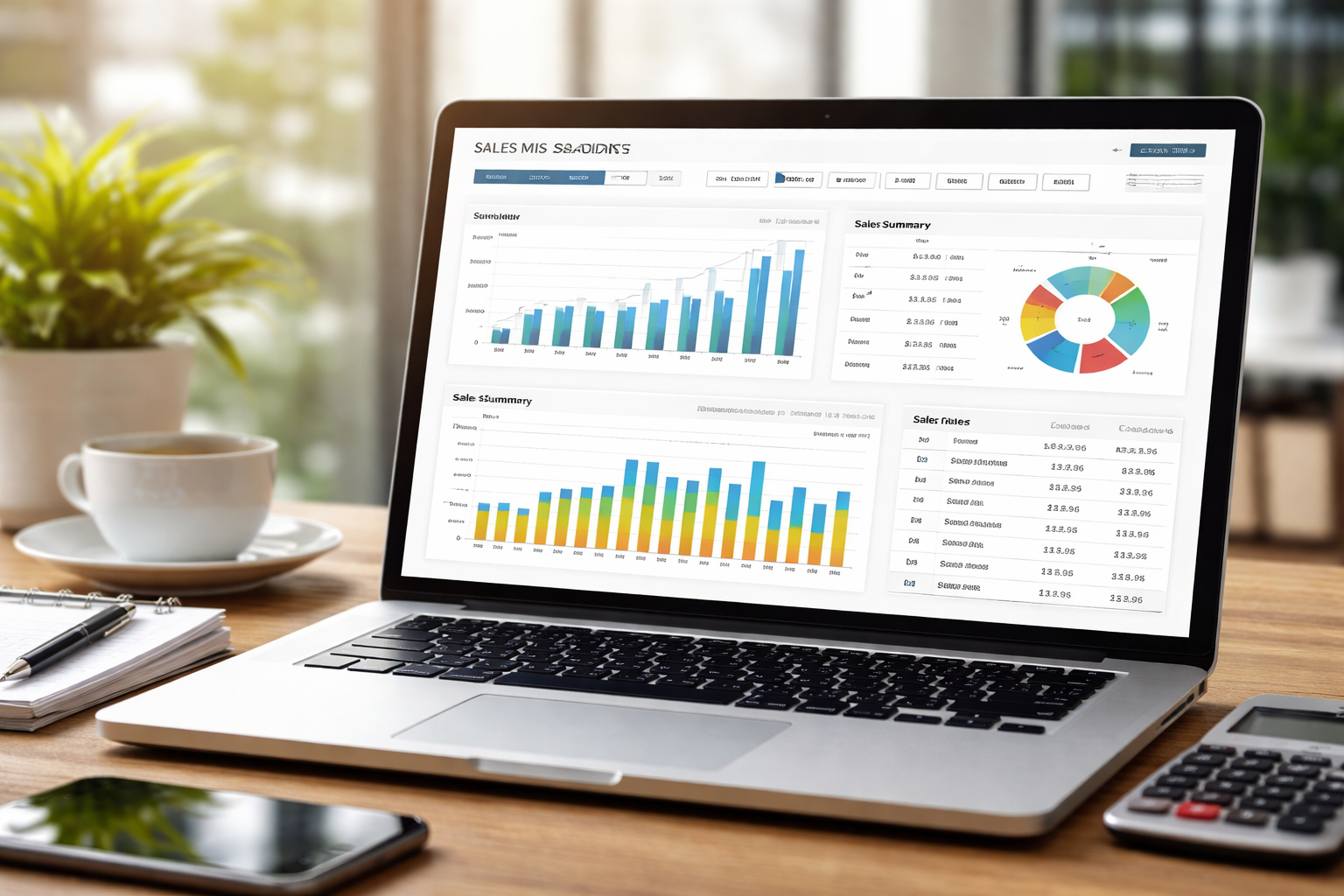
If you’ve ever logged into the Sales MIS system and felt unsure about where your reports are, how to filter them, or how to download them correctly, you’re not alone. Many users struggle with finding the right report or exporting data in a usable format.
This guide will walk you through everything in simple terms. By the end, you’ll know exactly how to check your Sales MIS reports and download them without confusion.
What are Sales MIS Reports and why do they matter?
Sales MIS reports are structured summaries of your sales data. They help you track performance, monitor trends, and make better decisions.
What type of information do these reports show?
Most Sales MIS reports include:
- Daily, weekly, and monthly sales figures
- Product-wise or region-wise performance
- Dealer, distributor, or outlet data
- Targets vs actual sales
- Returns, discounts, and adjustments
All this data is pulled from the system in real time or near real time.
Who usually uses these reports?
These reports are commonly used by:
- Sales officers and field staff
- Area and regional managers
- Accounts and finance teams
- Senior management
Each role may see slightly different data based on access level.
How do I access the Sales MIS Reports section?
Before you can view or download reports, you need to reach the correct area in the system.
Logging into the system correctly
Start by opening the official Sales MIS portal in your browser. Enter your user ID and password, then complete any verification step if asked.
Once logged in, you will land on the main dashboard.
Finding the reports menu
Look for menu options like:
- Reports
- MIS Reports
- Sales Reports
- Analytics or Performance
Click on this section to open the reporting panel.
How to check Sales MIS reports step by step
Viewing reports is usually straightforward once you know where to click.
Selecting the right report type
Inside the reports section, you may see options such as:
- Daily Sales Report
- Monthly Summary
- Dealer Performance
- Product-wise Sales
- Territory or Area Report
Click the report that matches what you need.
Applying filters to get accurate data
Filters help you narrow down the results. Common filters include:
- Date range
- Region or territory
- Dealer or distributor name
- Product category
Always set filters before generating the report. This avoids messy or incomplete data.
Generating and viewing the report
After selecting filters, click on buttons like:
- View
- Generate
- Search
- Show Report
The system will then display the report on your screen.
How to download Sales MIS reports
Once your report is visible, the next step is saving it for offline use.
Available download formats
Most systems allow downloads in formats such as:
- Excel (XLS or XLSX)
- CSV
Excel is usually best for editing and analysis. PDF is useful for sharing and printing.
Step-by-step download process
- Generate the report using filters
- Look for a button like Download, Export, or Save
- Choose your preferred format
- Click to download
- The file will save to your device
Open the file to confirm the data is complete.
Common problems while checking or downloading reports
Sometimes things don’t work as expected. Here are the most common issues and what they mean.
Report not showing any data
This often happens due to:
- Wrong date range
- Incorrect dealer or region selected
- No sales activity in that period
Double-check your filters and try again.
Download button not working
This may be due to:
- Slow internet connection
- Browser restrictions
- System maintenance
Refreshing the page or trying another browser often fixes this.
Data looks incomplete or wrong
If figures don’t match expectations:
- Re-check the selected filters
- Confirm your user access level
- Compare with previous reports for consistency
If the issue continues, report it to your system support team.
Tips to use Sales MIS reports more effectively
Using reports well can save time and prevent mistakes.
Save common reports for quick access
If the system allows favorites or saved reports, use them. This avoids setting the same filters again and again.
Download reports regularly
Daily or weekly downloads help you keep records. They also protect you in case data is changed later.
Cross-check important figures
For key decisions, always verify numbers using:
- Another report
- Previous period data
- Sales invoices or statements
This builds confidence in your data.
FAQs
Can I download multiple reports at once?
In most systems, reports are downloaded one at a time. Some advanced setups allow batch exports, but this depends on your system version.
Why can’t I see certain reports in my account?
Report visibility is usually controlled by user role. If you don’t see a report, your access level may be limited.
Is it safe to share downloaded reports?
Yes, but only with authorized people. Sales MIS reports often contain sensitive business data, so handle them carefully.
Final thoughts
Sales MIS reports are powerful tools when used correctly. Once you understand where to find them, how to filter them, and how to download them, everything becomes easier.
Take a few minutes to explore the reports section. Practice using filters and exporting data.
With regular use, checking and downloading reports will feel natural and fast.