If you’re opening the sales portal for the first time and feeling unsure where to click, you’re not alone. Many users log in, see multiple menus and numbers, and don’t know where to start.
This guide will walk you through everything step by step. By the end, you’ll know exactly how to navigate, check your data, and use the portal with confidence.
What is the sales portal and why do people use it?
The sales portal is an online system that shows your sales data in one place. It helps you track performance, view reports, and manage daily activity without paperwork.
Most people use it to:
- Check daily or monthly sales
- Monitor targets and achievements
- Download reports
- Review product or area performance
Once you understand the layout, it becomes very easy to use.
How do I log in for the first time?
Getting into the portal is simple, but first-time users often get confused about where to enter details.
What you need before logging in
You usually need:
- Your user ID or username
- Your password
- A stable internet connection
If your company has provided a link, use that. If not, ask your supervisor or IT team for the official access page.
What to do if login fails
If the page doesn’t open or your details don’t work:
- Double-check spelling and case (capital letters matter)
- Clear your browser cache and try again
- Use “Forgot Password” if available
- Contact support if the problem continues
Don’t keep guessing passwords. That can lock your account.
What do I see after logging in?
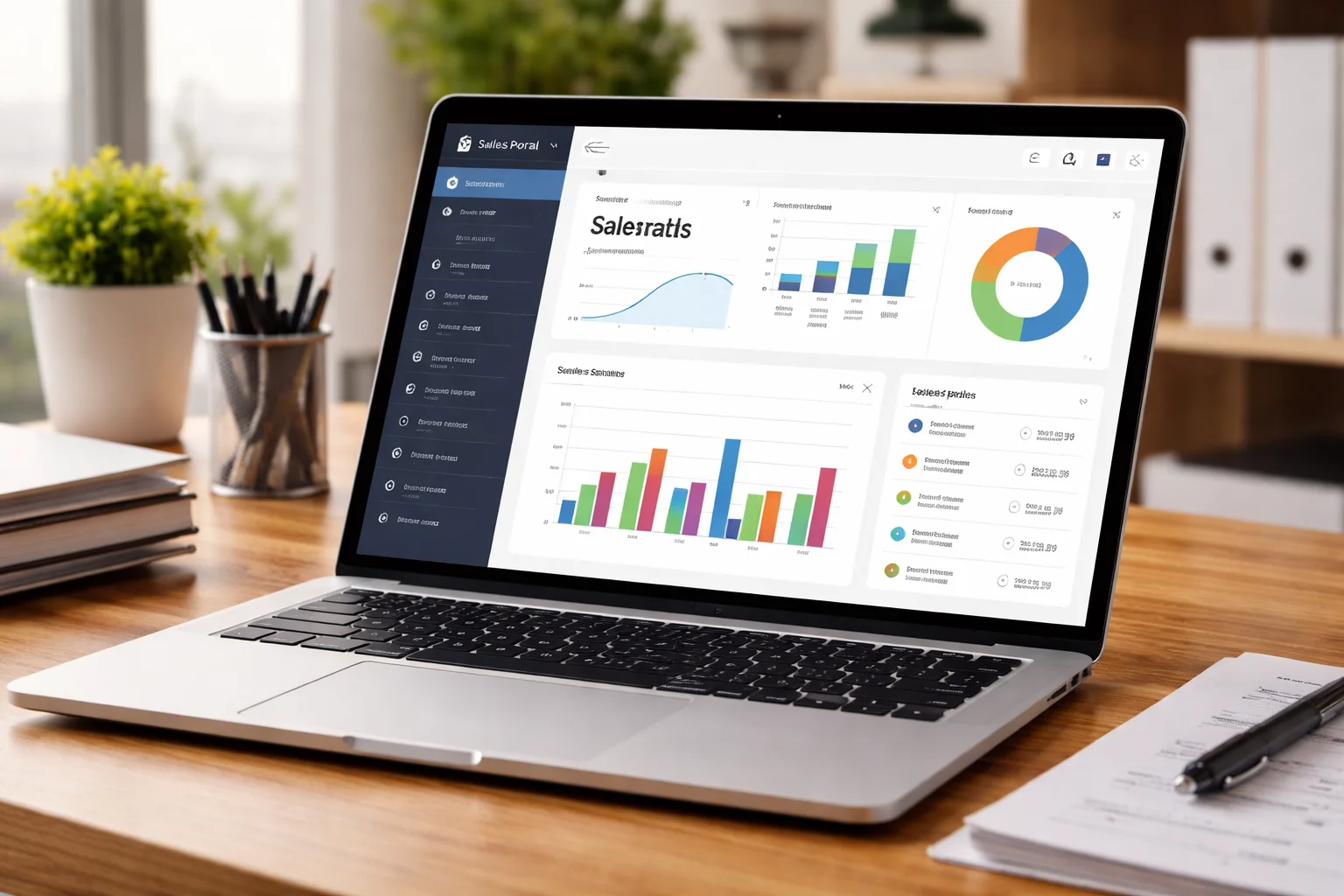
The first screen is usually the dashboard. This is your main control panel.
Understanding the dashboard layout
Most dashboards show:
- Total sales figures
- Today’s performance
- Monthly progress
- Graphs or charts
Think of this as a quick snapshot. It tells you how you are doing at a glance.
Common sections you’ll notice
You may see menus like:
- Sales reports
- Performance
- Orders
- Targets
- Profile or settings
These are the areas you’ll use most.
How do I check my daily and monthly sales?
This is one of the main reasons people use the portal.
Checking daily sales
Look for a section like “Today’s Sales” or “Daily Report.” Click it to see:
- Total sales amount
- Number of orders
- Products sold
This helps you track how your day is going in real time.
Checking monthly performance
Go to “Monthly Report” or “Performance.” Here you can see:
- Total sales for the month
- Target vs achievement
- Growth or decline
This is useful for planning and reviewing your progress.
How can I view detailed reports?
Sometimes you need more than just totals. Detailed reports help you understand where your sales are coming from.
Using filters and date ranges
Most report pages let you:
- Select a date range
- Choose a product or area
- Filter by customer or category
Use these to narrow down exactly what you want to see.
Understanding report columns
You may see columns like:
- Invoice number
- Product name
- Quantity
- Value
If something looks confusing, hover over icons or check help tips. They often explain what each column means.
How do I download or export data?
Many users need reports for meetings or records.
Steps to download reports
Usually, you just:
- Open the report
- Select your date range
- Click “Download” or “Export”
- Choose format (PDF, Excel, etc.)
Save the file to your device and you’re done.
When exporting is useful
Exporting helps when:
- You need to share data with your manager
- You want to analyze numbers offline
- You are preparing presentations
It saves time and avoids manual copying.
How do I update my profile and settings?
Your profile section keeps your information up to date.
What you can change
Depending on access, you may be able to update:
- Password
- Contact number
- Email address
Always keep these accurate. It helps with security and communication.
Why updating matters
If your details are wrong, you might:
- Miss important alerts
- Have trouble resetting your password
- Face access issues later
A quick update now prevents problems later.
Common mistakes beginners make
Many new users face the same small issues. Knowing them early saves frustration.
Clicking randomly without understanding
Take a few minutes to explore calmly. Random clicking can confuse you and make you think the system is broken.
Ignoring filters
If data looks wrong, check filters. Many times, it’s just showing a different date or area.
Not logging out properly
Always log out, especially on shared devices. It protects your data.
How to use the portal confidently in daily work
Once you know the basics, the portal becomes part of your routine.
A simple daily routine example
You can:
- Check today’s sales in the morning
- Review progress after lunch
- Download the daily report before leaving
This keeps you informed and in control.
Learning from trends
If you notice sales drop on certain days or products, you can:
- Adjust your approach
- Focus on high-performing items
- Discuss strategy with your team
The portal isn’t just for viewing. It helps you make better decisions.
FAQs
Is the sales portal hard to use for beginners?
No. It may look busy at first, but once you understand the main sections, it becomes very simple.
Can I use the portal on my mobile phone?
In most cases, yes. The layout may look slightly different, but the features are usually the same.
What should I do if the data looks incorrect?
First, check filters and dates. If it still seems wrong, report it to your supervisor or support team.
Final thoughts
Using the sales portal doesn’t require technical skills. You just need a little guidance and practice. Start with the dashboard, learn how to check your sales, and explore reports at your own pace.
Within a few days, it will feel natural. And once it does, you’ll wonder how you ever worked without it.