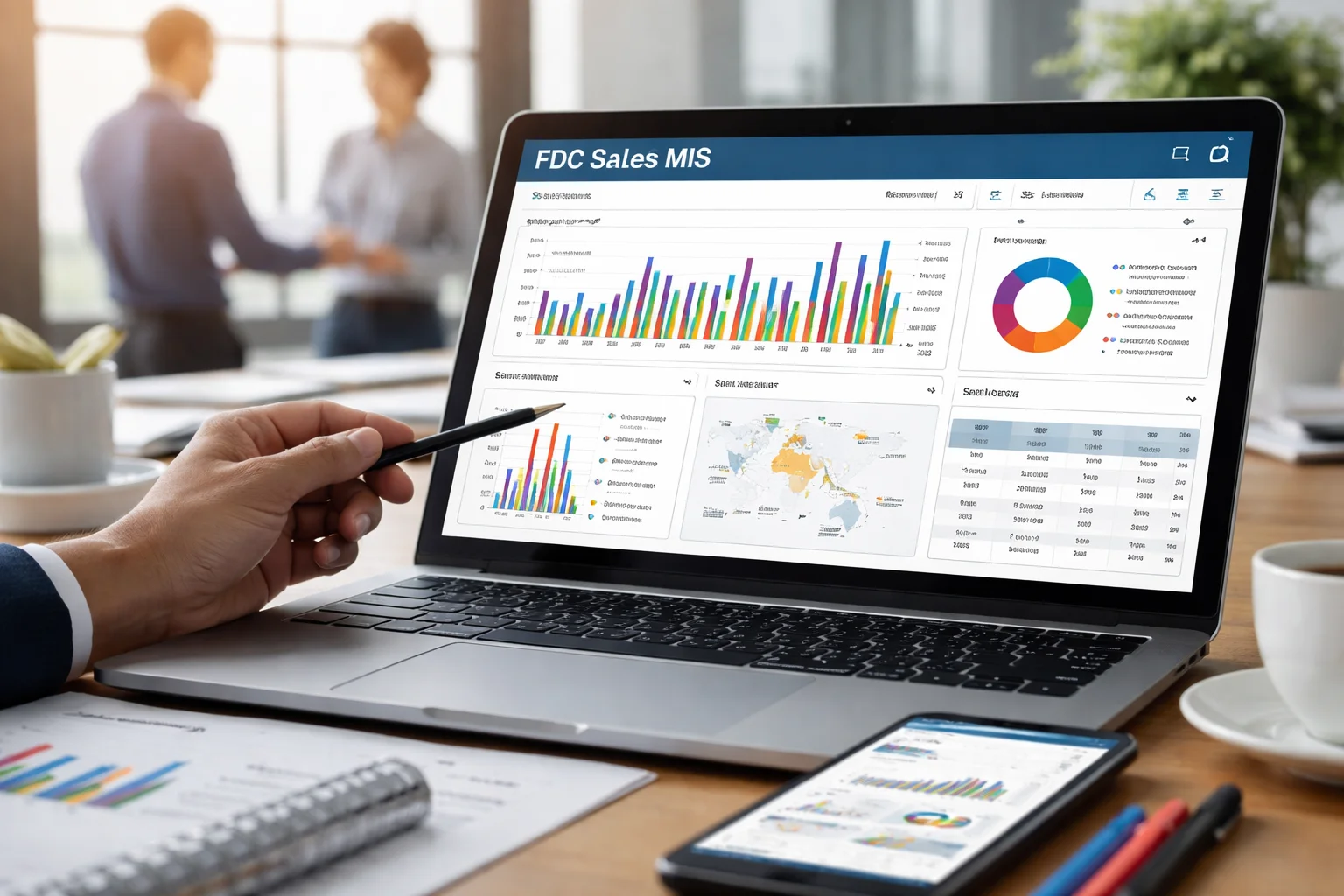
If you’ve just been given access to the sales MIS system and feel a bit lost, you’re not alone. Many users open the dashboard for the first time and aren’t sure where to start, what to click, or how to enter data correctly.
This guide will walk you through everything step by step. By the end, you’ll know exactly how to use the system with confidence, even if you’re completely new.
What is the Sales MIS system and why is it important?
Before using the system, it helps to understand what it actually does.
Understanding the purpose of a Sales MIS
A Sales MIS (Management Information System) is used to record, track, and analyze sales data.
It brings together information like orders, customers, stock, and performance reports in one place.
Instead of using registers, notebooks, or multiple Excel files, everything is stored in a single system.
Who usually uses the Sales MIS system?
The system is commonly used by:
- Sales officers and field staff
- Area managers and supervisors
- Data entry operators
- Head office reporting teams
Each role may see different options, but the core workflow remains the same.
How do you log in to the Sales MIS system?
This is usually the first hurdle for new users.
Getting your login credentials
Your company or admin team will provide:
- A user ID or username
- A password
- The system link or portal address
If you haven’t received these, contact your supervisor or IT support.
First-time login tips
When logging in for the first time:
- Enter details carefully (passwords are case-sensitive)
- Change your password if prompted
- Do not share your login with anyone
Once logged in, you’ll land on the main dashboard.
What do you see on the dashboard?
The dashboard is your control center.
Main sections on the dashboard
Most dashboards include:
- Sales entry or order booking
- Customer or retailer list
- Stock or inventory section
- Reports and summaries
- Profile or settings area
The layout may vary slightly, but the structure is usually similar.
How to read the dashboard data
You might see:
- Today’s sales total
- Monthly performance
- Targets vs achievements
- Pending entries or approvals
Don’t worry if it looks busy at first. You’ll get used to it quickly.
How do you add a new sale or order?
This is the most common task in the system.
Opening the sales entry form
Look for options like:
- “New Sale”
- “Add Order”
- “Sales Entry”
Clicking this opens a form where you’ll enter the sale details.
Filling in sale details correctly
You will usually need to enter:
- Customer or retailer name
- Product name or code
- Quantity
- Price or value
- Date of sale
Always double-check entries before saving. Small mistakes can affect reports later.
Saving and submitting the entry
After filling the form:
- Click “Save” or “Submit”
- Wait for confirmation message
- Make sure the entry appears in your list
If it doesn’t save, check for missing fields.
How do you manage customers or retailers?
Customer data is the backbone of sales tracking.
Adding a new customer
Go to the customer or retailer section and click:
- “Add New” or “Create Customer”
You’ll be asked for:
- Name
- Location or area
- Contact number
- Category or type
Fill only what is required. Keep data clean and accurate.
Editing existing customer details
If a shop changes name or number:
- Search the customer
- Click edit
- Update the information
- Save changes
Avoid creating duplicate entries.
How do you check stock or product information?
This helps prevent over-selling or wrong orders.
Viewing product list
In the product or stock section, you can see:
- Product names
- Codes
- Available quantity
- Prices
Use the search bar to find items quickly.
Understanding stock status
Some systems show:
- In stock
- Low stock
- Out of stock
This helps you plan sales more realistically.
How do you view and generate reports?
Reports are used for tracking performance.
Opening the reports section
Click on:
- “Reports”
- “Sales Reports”
- “Performance”
You’ll usually see different report types.
Choosing the right report type
Common reports include:
- Daily sales report
- Monthly summary
- Product-wise sales
- Area-wise performance
Select the date range, then click “Generate” or “View”.
Exporting or sharing reports
Many systems allow:
- Download as PDF
- Export to Excel
- Print directly
Use these options if you need to submit reports to management.
How do you correct mistakes in entries?
Mistakes happen, especially in the beginning.
Editing an existing entry
Find the entry in your sales list:
- Click “Edit”
- Correct the information
- Save again
Some systems only allow edits within a certain time.
Deleting wrong entries
If an entry is completely wrong:
- Click “Delete” (if allowed)
- Confirm deletion
If delete is not available, contact your supervisor.
How do you log out and secure your account?
Never ignore this step.
Logging out properly
Always use the “Logout” button instead of just closing the browser.
This prevents unauthorized access.
Keeping your account safe
- Do not save passwords on public computers
- Change password regularly
- Report suspicious activity immediately
Your data responsibility matters.
Common mistakes new users should avoid
Learning from others’ mistakes saves time.
Rushing through entries
Fast typing often leads to:
- Wrong quantities
- Wrong customers
- Wrong dates
Slow down. Accuracy is more important than speed.
Creating duplicate records
Before adding a new customer or product, always search first.
Duplicates create confusion in reports.
Ignoring error messages
If the system shows an error, read it.
It usually tells you exactly what is missing.
Real-world example: A typical daily workflow
Let’s say you’re a field sales officer.
You start your day by:
- Logging into the system
- Checking your targets and previous day’s performance
After visiting shops, you:
- Add each order through the sales entry form
- Select the correct retailer and products
- Save entries immediately
At the end of the day, you:
- Review all entries
- Generate a daily report
- Log out properly
This simple routine keeps your data clean and your reporting strong.
FAQs
Is the Sales MIS system difficult to learn?
No. Most users become comfortable within a few days of regular use. The key is practice and careful data entry.
What should I do if I forget my password?
Use the “Forgot Password” option if available or contact your admin or IT team. Do not try random passwords.
Can I use the system on mobile?
Many systems are mobile-friendly or have apps, but this depends on your organization’s setup. Check with your supervisor.
Final thoughts
Using the Sales MIS system may feel overwhelming at first, but it becomes simple once you understand the flow.
Login, enter data carefully, review your work, and use reports to track performance.
With regular use, the system becomes a powerful tool that saves time, reduces mistakes, and improves visibility.
If you ever feel unsure, ask questions early. It’s always better to clarify than to fix errors later.
If you’re using the FDC Sales MIS platform, the steps above apply in the same way, just within their specific interface.
Take it step by step. You’ll be confident in no time.