If you’ve just logged into the sales dashboard and feel a bit lost, you’re not alone. Many users open it, see a lot of numbers and charts, and wonder where to even start. This guide is written for real users who want clear, simple help.
By the end of this article, you will understand what each section does, how to read the data, and how to use the dashboard in your daily work with confidence.
What is the sales dashboard and why does it matter?
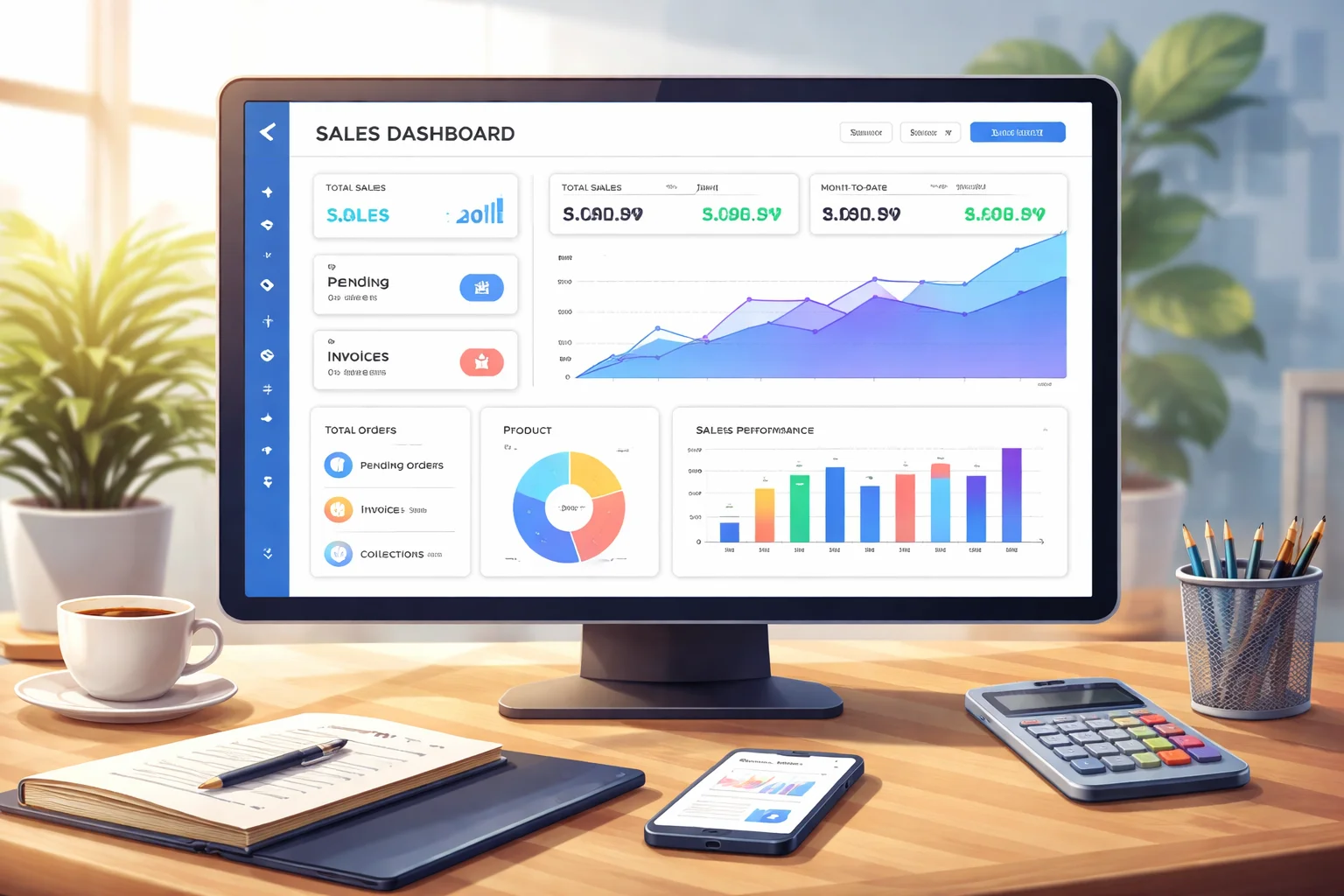
The sales dashboard is your control panel. It shows your performance, targets, orders, and team activity in one place. Instead of guessing how things are going, you can see it clearly.
Who should use the sales dashboard?
- Sales officers tracking their daily work
- Managers monitoring team performance
- Supervisors reviewing targets and achievements
If you are involved in sales in any way, this dashboard is built for you.
How do you log in and access the dashboard?
Before using anything, you need to access the system properly.
Where do you log in?
You log in through the official portal provided by your organization. Once logged in, you will see the main dashboard screen automatically.
What do you need to log in?
- Your registered username
- Your password
- A stable internet connection
If you cannot log in, contact your system admin instead of trying random passwords.
What do you see first on the dashboard?
The first screen usually shows a summary of your sales activity. This is called the overview section.
Understanding the top summary cards
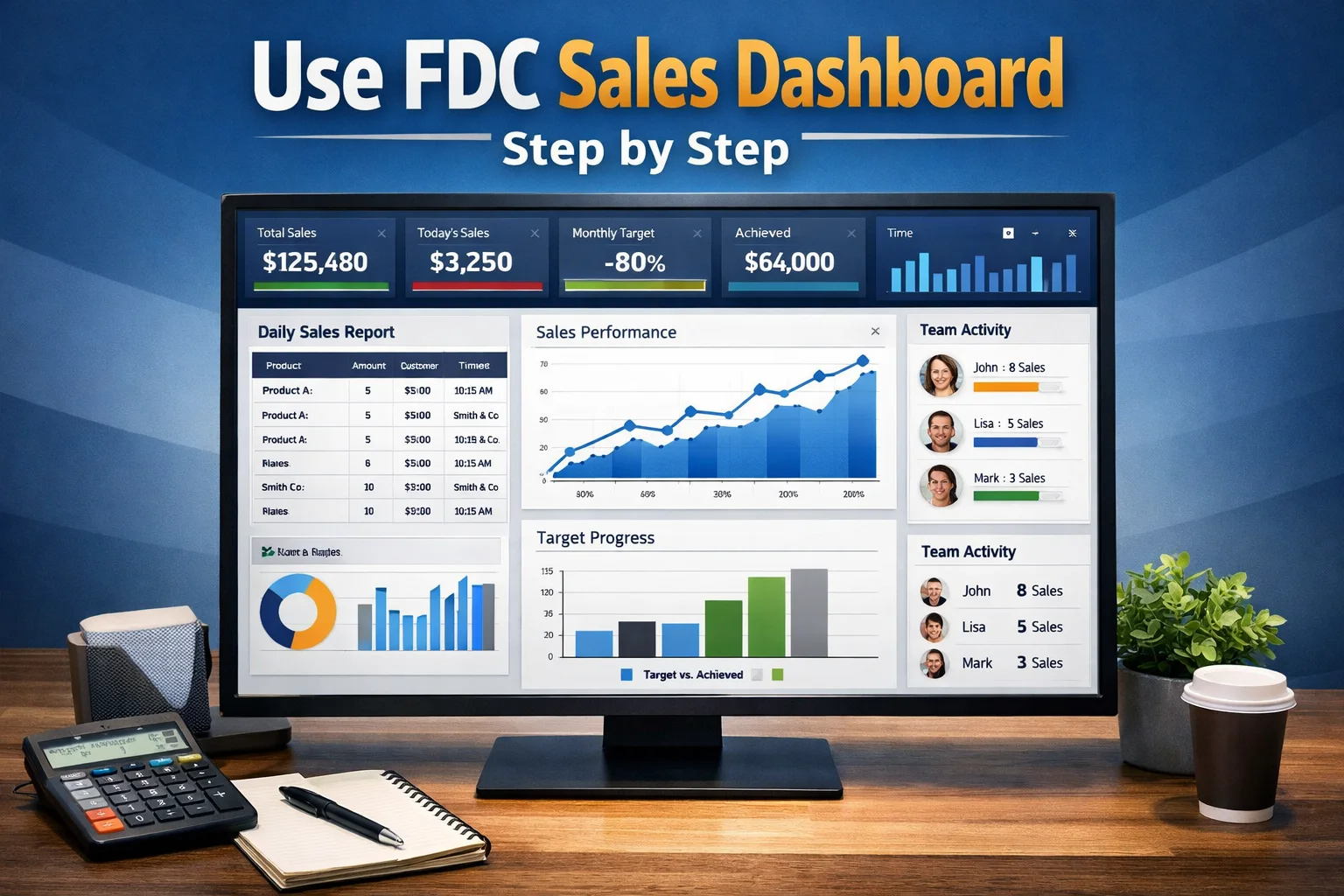
These small boxes show:
- Total sales
- Today’s sales
- Monthly target
- Achieved amount
They give you a quick idea of where you stand without opening reports.
Why this overview is important
In one glance, you know if you are behind, on track, or ahead. It saves time and avoids confusion.
How do you check your daily sales?
Daily sales are what most users care about first.
Where to find daily sales data
Look for a section named Today’s Sales, Daily Report, or similar. Click it to see all entries made today.
What details are shown
You will usually see:
- Product name
- Quantity
- Amount
- Customer or shop name
- Time of entry
This helps you confirm that your work is recorded correctly.
How do you view monthly and target reports?
Targets and monthly progress are key for planning.
Checking your monthly progress
Go to the Monthly Sales or Target Progress section. You will see a bar or percentage showing how much you have achieved.
Understanding target vs achievement
- Target = what you are expected to sell
- Achievement = what you have sold so far
If your achievement is lower, you know you need to focus more.
How do you use filters to find specific data?
Filters help you avoid scrolling through long lists.
Common filters you can use
- Date range
- Area or region
- Product name
- Sales officer name
Select the filter, apply it, and the data will update.
When filters are most useful
Filters are helpful when:
- You want to check one day’s work
- You are reviewing a specific product
- You are checking one person’s performance
How do you read charts and graphs correctly?
Charts look complex but are simple once you understand them.
Bar charts and line graphs explained
- Bar charts compare different values
- Line graphs show progress over time
For example, a rising line means your sales are increasing.
Common mistake to avoid
Do not look at one day only. Always check trends over several days to understand real performance.
How do you check team performance (for managers)?
If you manage a team, this section is very important.
Where team data is usually shown
Look for Team Report, User Performance, or Hierarchy View.
What you can see here
- Individual sales
- Targets vs achievement
- Active and inactive users
This helps you support weak performers and appreciate strong ones.
How do you export or download reports?
Sometimes you need data outside the system.
Steps to download reports
- Open the report you need
- Click Export, Download, or Print
- Choose format (PDF, Excel, etc.)
Why downloading is useful
You can:
- Share reports with seniors
- Keep offline records
- Analyze data in Excel
How do you avoid common dashboard mistakes?
Small mistakes can create big confusion.
Entering wrong data
Always double-check:
- Quantity
- Product
- Customer name
Wrong entries affect your reports.
Not refreshing the page
If data looks old, refresh the page. Many users forget this and think the system is not working.
How is the dashboard used in real life?
Let’s look at a simple example.
Example: A sales officer’s daily routine
- Logs in in the morning
- Checks today’s target
- Makes sales visits
- Enters sales after each visit
- Checks progress in the evening
This habit keeps everything clear and updated.
Example: A manager’s daily routine
- Logs in after lunch
- Checks team performance
- Identifies low sales areas
- Calls team members for support
This way, problems are solved early.
Where does this system fit in the overall sales process?
The sales dashboard is not separate. It connects everything.
From order to report
- Order is placed
- Data is entered
- Dashboard updates
- Reports are generated
Everything flows through this system.
(The FDC sales system is one example where this dashboard structure is used to manage nationwide sales operations.)
FAQs
Why is my sales not showing on the dashboard?
It usually means:
- Data was not saved
- Internet issue occurred
- Wrong date was selected
Check and re-enter if needed.
Can I edit a wrong entry?
In most systems, you need admin permission to edit. Contact your supervisor or system admin.
How often does the dashboard update?
Most dashboards update in real time. Some may refresh every few minutes. If in doubt, refresh the page.
Conclusion
The sales dashboard is not something to fear. It is a tool designed to make your work easier, clearer, and more organized. Once you understand where things are and what they mean, using it becomes natural.
Start by checking your daily sales, then move to monthly targets, and slowly explore other features. With regular use, you will read the dashboard like a story of your own performance.
Take it step by step. With practice, confidence comes.