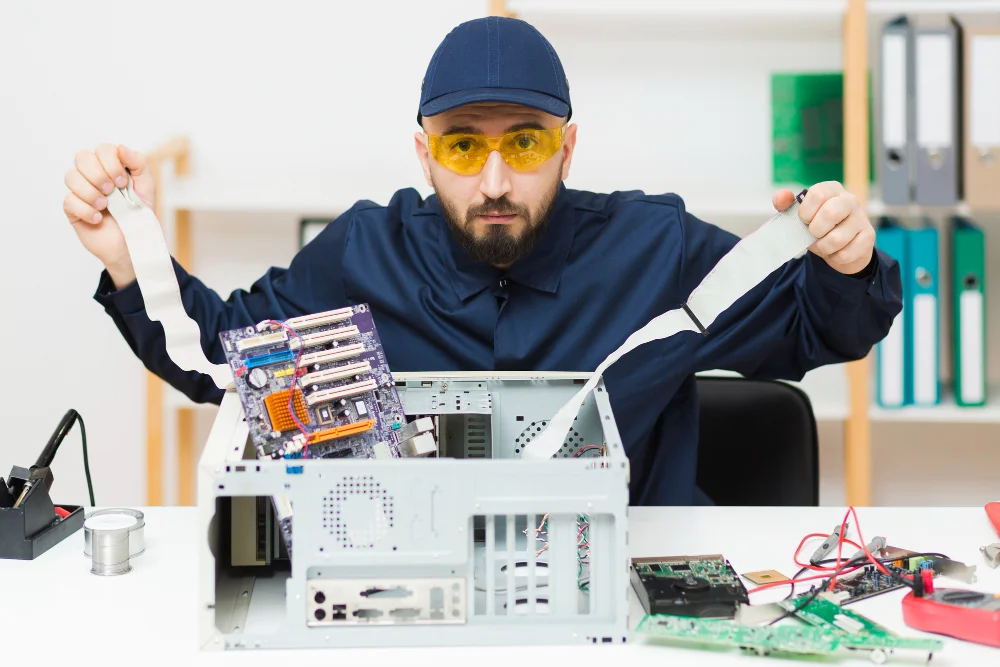
Encountering a fatal device hardware error can be a daunting experience for any computer user. This critical error often signals that your computer or external device, such as a hard drive or SSD, is facing serious hardware issues. Not only can it disrupt your workflow, but it also poses a threat to your data integrity. In this guide, we will explore what causes this error, how to diagnose it, and effective solutions to fix it, ensuring your system runs smoothly and efficiently.
Understanding Fatal Device Hardware Error
A fatal device hardware error occurs when your computer’s operating system is unable to communicate correctly with a hardware component. This error can manifest as a Blue Screen of Death (BSOD), making your system unresponsive. It is crucial to address this error promptly to avoid further damage or data loss.
Common Causes
- Hardware Issues: Physical damage to components like hard drives or SSDs.
- Software Conflicts: Incompatible or corrupted software affecting hardware communication.
- Driver Problems: Outdated or incorrect drivers causing communication failures.
Diagnosing the Error
To effectively resolve a fatal device hardware error, accurate diagnosis is key. Here are some steps to identify the root cause:
Using Built-In Diagnostic Tools
- CHKDSK: A Windows utility to check for disk errors. Run it by typing `chkdsk /f` in the command prompt.
- Device Manager: Check for any devices marked with an error symbol, indicating driver issues.
- BIOS Settings: Ensure your hardware is recognized correctly by accessing the BIOS menu during boot-up.
Third-Party Software Recommendations
Several third-party tools can help diagnose hardware issues more thoroughly. Consider using software like CrystalDiskInfo for monitoring hard drive health or MemTest86 for testing RAM integrity.
See also Alain Fribourg and Éolane: Steering Electronics Manufacturing into the Future
Step-by-Step Solutions
Once you’ve identified the possible causes, it’s time to implement solutions. Here are some effective methods to fix a fatal device hardware error:
Solution 1: Update Drivers
Outdated drivers are a common cause of hardware errors. To update:
- Open Device Manager.
- Locate the device with the issue, right-click, and select Update driver.
- Choose Search automatically for drivers and follow the prompts.
Solution 2: Run CHKDSK
CHKDSK can repair disk-related errors:
- Press Win + X and select Command Prompt (Admin).
- Type `chkdsk /f /r` and press Enter.
- Restart your computer to allow the tool to fix errors.
Solution 3: Replace Faulty Hardware
If diagnostics indicate hardware failure, replacement might be necessary. Consult a professional technician for components like hard drives or SSDs to ensure proper installation.
Solution 4: Check BIOS Settings
Incorrect BIOS settings can lead to hardware recognition problems:
- Restart your computer and enter the BIOS menu by pressing the designated key (often F2 or DEL).
- Ensure all connected hardware is recognized.
- Save changes and exit the BIOS.
Prevention Tips
Preventing a fatal device hardware error is as crucial as resolving it. Here are some tips to maintain system health:
- Regular Maintenance: Clean your hardware components and ensure proper ventilation to avoid overheating.
- Software Updates: Keep your operating system and drivers up-to-date to prevent compatibility issues.
- Data Backup: Use cloud backup solutions to protect against data loss in case of hardware failure.
FAQs
- What causes a fatal device hardware error? This error can result from hardware failure, outdated drivers, or software conflicts.
- How do I fix a fatal device hardware error? Update drivers, run CHKDSK, check BIOS settings, and replace faulty hardware if necessary.
- Can a fatal device hardware error be prevented? Yes, by performing regular maintenance, keeping software updated, and backing up data.
- Is a fatal device hardware error a sign of a failing hard drive? Yes, it can indicate hard drive issues, especially if diagnostics reveal errors.
Conclusion
Addressing a fatal device hardware error promptly is vital to maintaining your system’s health and performance. By following the diagnostic and solution steps outlined in this guide, you can effectively resolve this error and prevent it from reoccurring. Remember to keep your system updated and perform regular maintenance to safeguard against future hardware issues.