If you’re trying to register on the sales portal and feeling stuck, you’re not alone. Many users get confused by the form, unclear steps, or missing information. Some worry they’re doing something wrong. This guide walks you through the full registration process in simple, clear steps so you can create your account without stress.
By the end, you’ll know exactly what to prepare, what to fill in, and what to do if something doesn’t work.
What Is the Sales Portal and Who Needs to Register?
The sales portal is an online system used by sales teams, distributors, and field staff to manage daily sales activities. It allows users to submit sales data, view reports, and track performance from one place.
Who Typically Uses the Portal?
Most users fall into one of these groups:
- Sales representatives in the field
- Distributors and sub-distributors
- Area or regional sales managers
- Office staff handling sales data
If your role involves sales reporting, order entry, or performance tracking, you likely need access.
Why Registration Is Required
Registration is not optional. The system needs to know who you are, which region you belong to, and what level of access you should have. This helps keep data accurate and secure.
What You Need Before Starting Registration
Before opening the registration page, make sure you have the right details. This saves time and avoids errors.
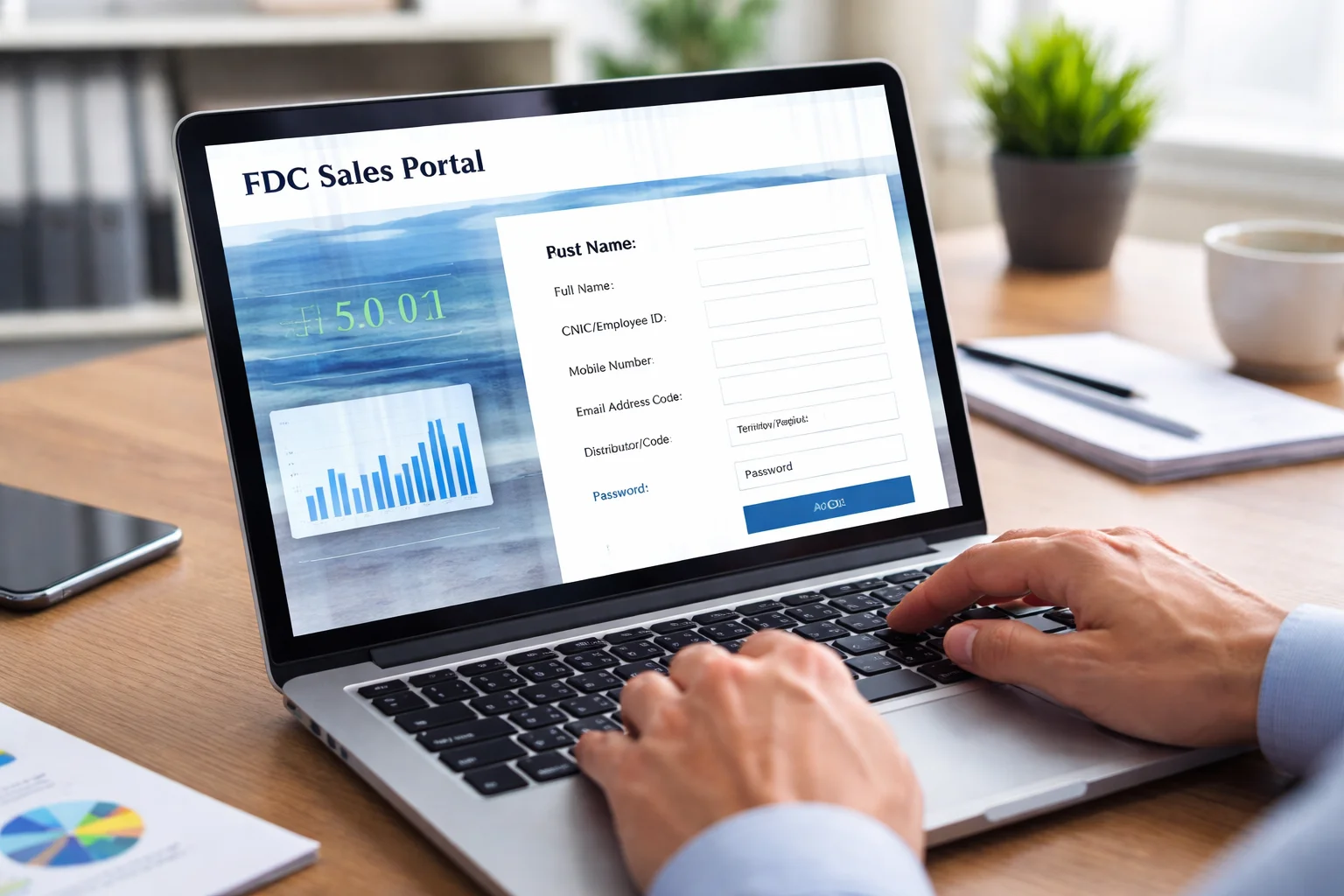
Personal and Work Information
You will usually need:
- Full name (as per company record)
- CNIC or employee ID
- Mobile number
- Email address
- Designation or role
Make sure everything matches official records.
Company or Distributor Details
Some forms ask for:
- Distributor code
- Territory or region
- Area manager name
If you’re not sure, ask your supervisor before starting.
Step-by-Step: How to Register on the Sales Portal
Let’s go through the process in simple steps.
Step 1: Open the Registration Page
Visit the official sales portal website. Look for options like “Register”, “Sign Up”, or “New User” on the login screen.
If you were given a specific link by your company, use that.
Step 2: Choose User Type (If Asked)
Some portals ask you to select your role, such as:
- Sales Representative
- Distributor
- Manager
Choose the option that matches your job.
Step 3: Fill in Your Basic Details
Enter your:
- Full name
- CNIC or employee ID
- Mobile number
- Email address
Double-check spelling and numbers. Small mistakes can block approval.
Step 4: Add Company or Distributor Information
Here you may need to enter:
- Distributor code
- Region or area
- Supervisor name
If a field is optional, you can skip it. Required fields are usually marked with a star (*).
Step 5: Create Username and Password
Choose a username that’s easy to remember. Create a strong password with letters and numbers.
Avoid using:
- Your name
- Simple numbers like 1234
- Common words
Step 6: Submit the Form
Once everything is filled, click Submit or Register. You should see a confirmation message if it’s successful.
What Happens After You Submit the Registration?
Many users think registration means instant access. That’s not always true.
Approval Process Explained
In most cases, your request goes to an admin or manager for approval. This is normal. It helps verify that only authorized people get access.
Approval time can be:
- A few minutes
- A few hours
- Sometimes one working day
It depends on your company’s process.
How You’ll Know You’re Approved
You may receive:
- An SMS
- An email
- Or a message from your supervisor
Once approved, you can log in using your username and password.
Common Problems During Registration (and How to Fix Them)
Many users face small issues. Here’s how to handle them.
“Invalid Information” Error
This usually means something doesn’t match company records.
Check:
- CNIC or employee ID
- Spelling of your name
- Distributor code
Correct and try again.
Mobile Number Not Accepted
Make sure:
- You didn’t add spaces
- The number is active
- You’re using the correct format
If it still fails, use another number and update later.
No Confirmation After Submission
Wait a few minutes and check your SMS and email. If nothing comes, contact your area manager or IT support.
First-Time Login After Registration
Once approved, you can log in.
What You’ll See First
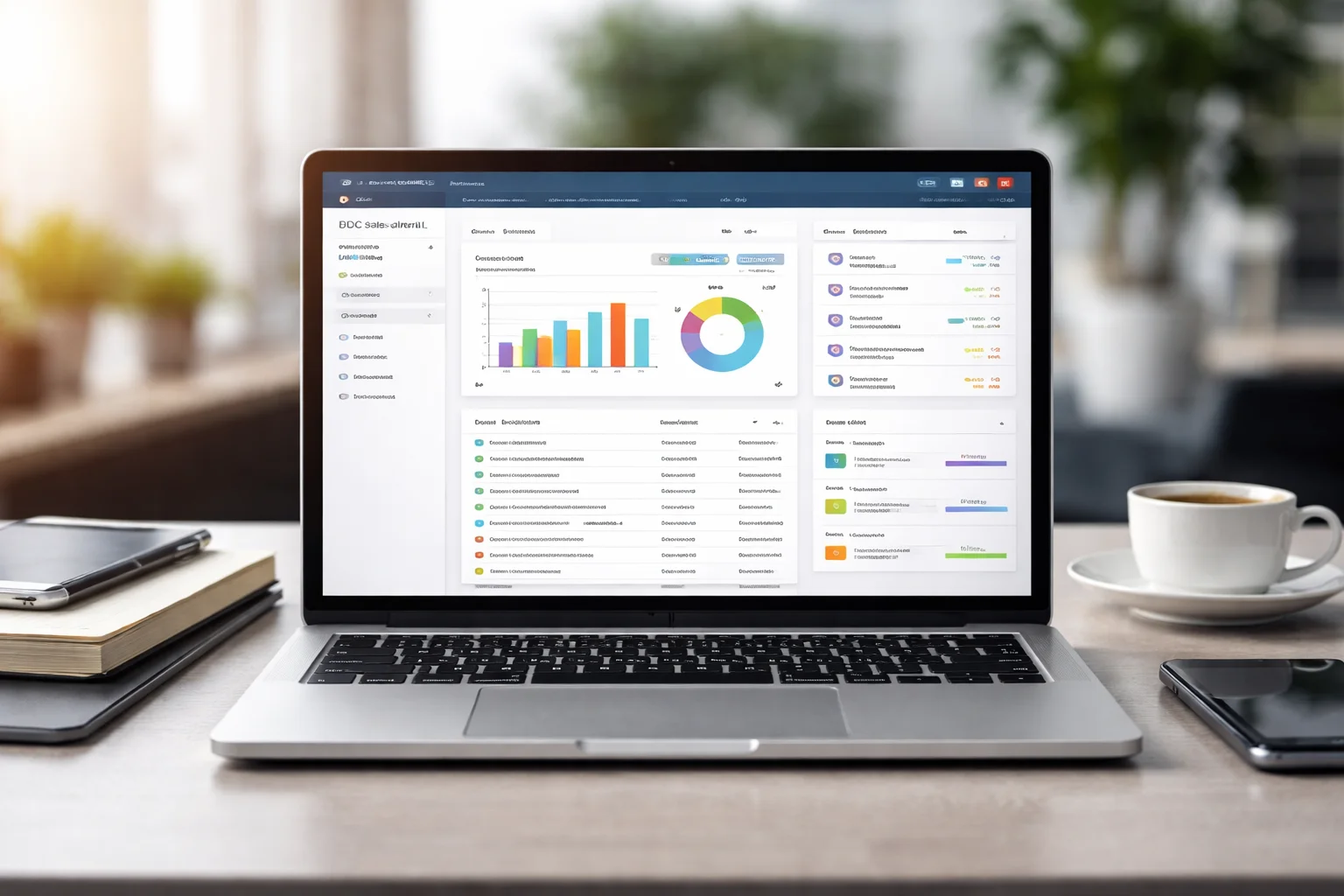
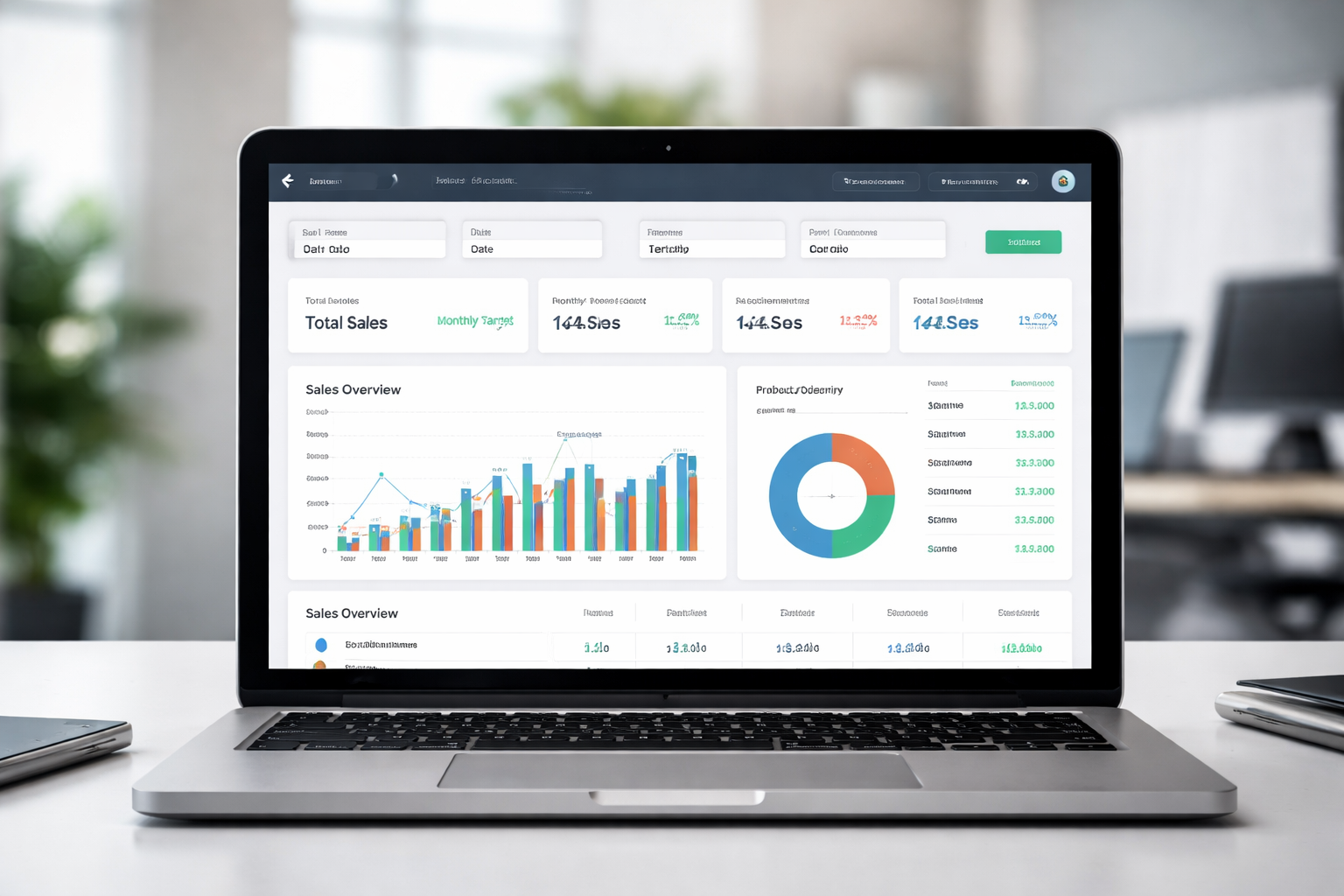
Most dashboards show:
- Sales entry options
- Reports section
- Profile or settings
Take a few minutes to explore. Don’t worry, you won’t break anything.
Change Your Password
It’s a good idea to change your password after first login. This keeps your account secure.
Real Example: A Typical Registration Scenario
Ali is a new sales representative. His manager tells him to register on the sales portal. Ali opens the site, clicks “Register,” and fills in his name, CNIC, mobile number, and distributor code. He submits the form.
After two hours, his manager approves his request. Ali gets an SMS and logs in the same day. Simple and smooth.
This is how it works for most users.
FAQs
How long does registration approval usually take?
It can take from a few minutes to one working day. It depends on how quickly your manager or admin reviews requests.
Can I register without a distributor code?
In most cases, no. The distributor code links you to the correct area and data. Ask your supervisor if you don’t have it.
What should I do if I forget my password after registration?
Use the “Forgot Password” option on the login page or contact your support team to reset it.
Final Thoughts
Registering on the sales portal may look complicated at first, but it’s actually a simple process when you know the steps. Prepare your information, fill the form carefully, and follow up for approval if needed.
Once you’re registered, managing your sales work becomes much easier and more organized. If you ever feel unsure, your supervisor or IT team is there to help.
This guide is here to make your start smooth and stress-free.